
Soft costs are also known as indirect costs or cost recovery.
They are “in-house” items generally considered part of your firm’s overhead, a portion of which may be attributed to your client.
Examples include:
- Photocopies
- Printing
- Long-distance phone calls
As a firm, you need to decide how to seek reimbursement for these items. You may choose to absorb the cost and not charge your client, add a % fee to every invoice, or itemize these charges. Soft cost entry is meant for those who wish to itemize. If you wish to charge a % fee, you can add an overhead charge.
Watch a Video
Add a Soft Cost
You can add a soft cost from:
Global Add Shortcut
-
- From atop the right side of the screen, click the Global Add Shortcut (plus sign).
- From the drop-down that displays, click Expense (Soft Cost).
The Add Expense screen opens.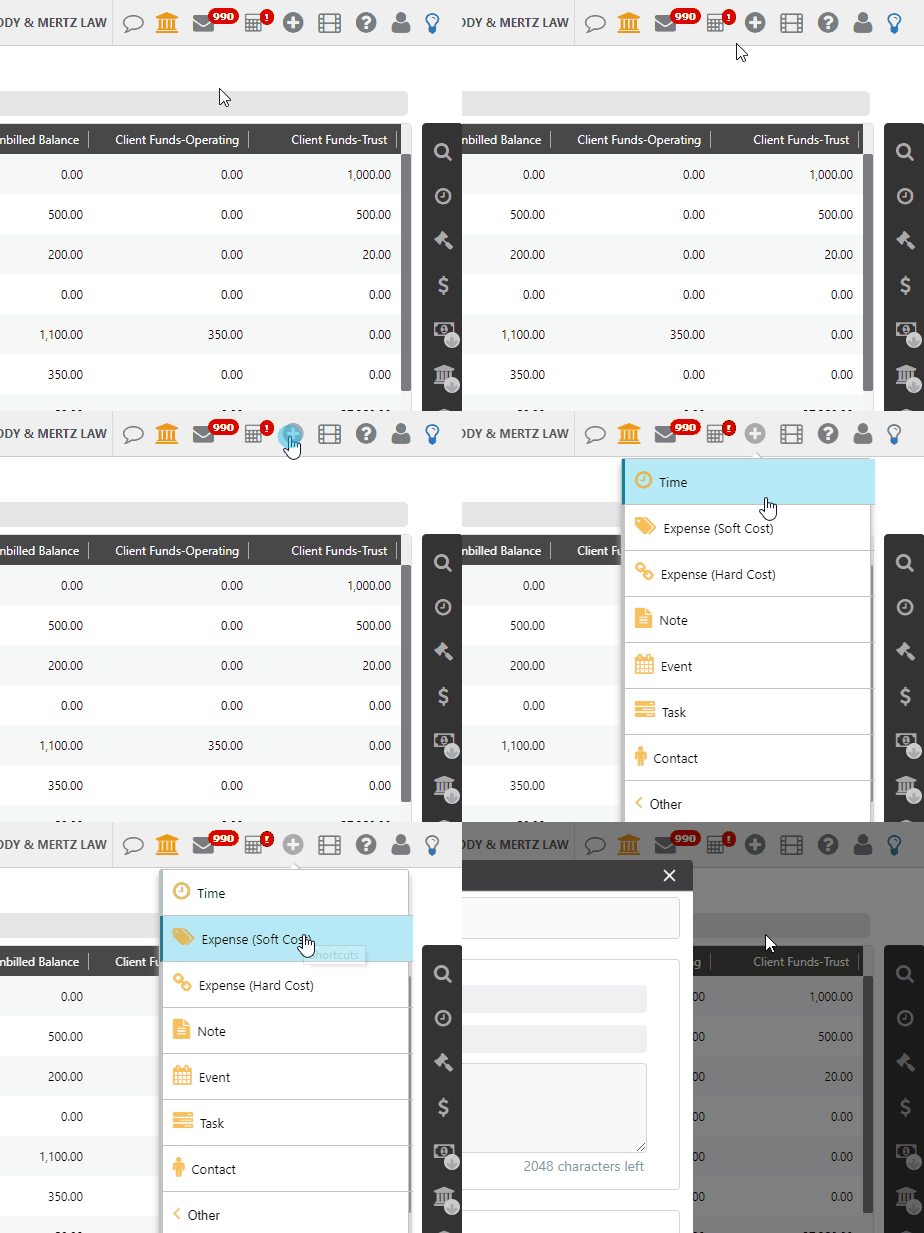
Matter Landing Page
-
- From the left navigation panel, click Matters.
- From the Matters screen right navigation, click the gavel icon.
The Add Expense screen opens.
Matter Details
-
- From the left navigation panel, click Matters.
- In the Matters screen, double-click the matter, or single-click the matter to highlight it, then in the toolbar atop the screen, click Details.
- From Matters Details left navigation, click Billing.
- From the tabs atop the Billing screen, click Time/Expense.
- From the toolbar atop the Time/Expense screen, click Add Expense > Soft Cost.
The Add Expense screen opens.
Activities
-
- From the left navigation panel, click Activities.
- Atop the Activities gray left navigation, click Time/Expense.
- From the toolbar atop the Time/Expense screen, click Add Expense > Soft Cost.
The Add Expense screen opens.
Soft Cost Fields
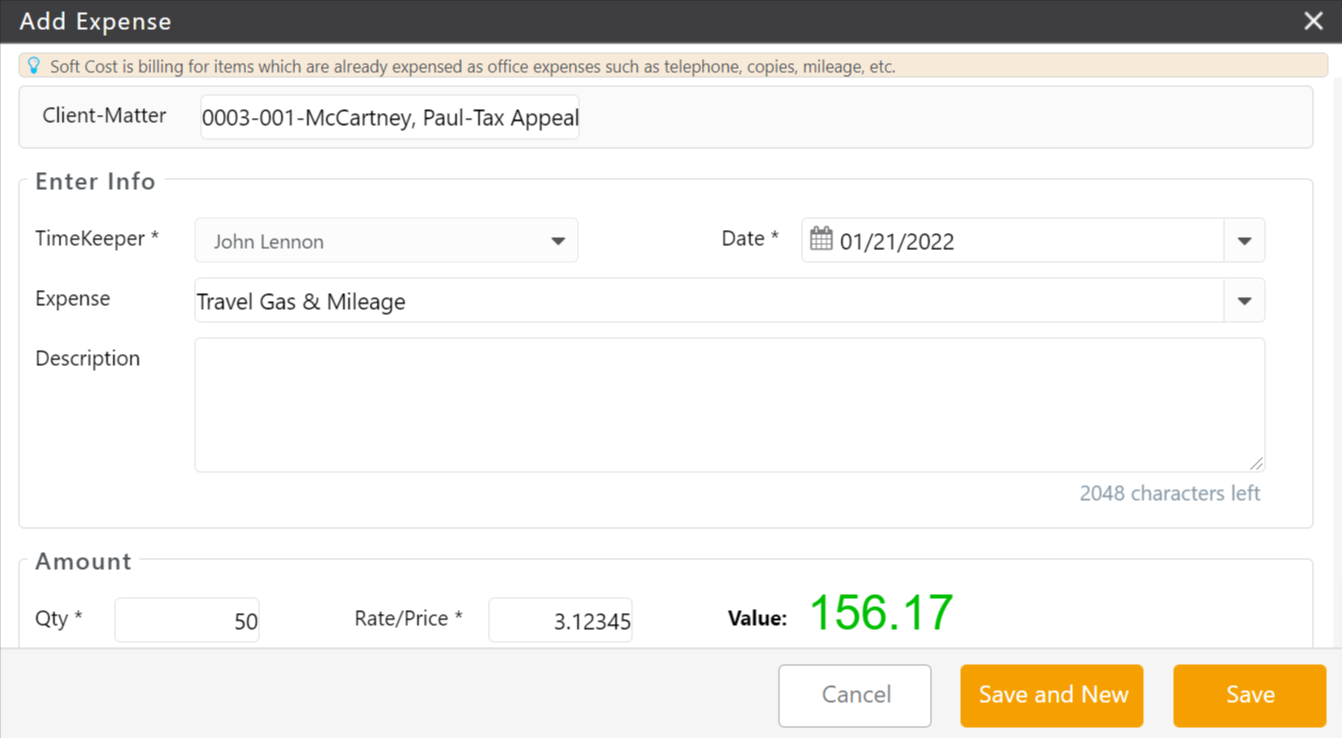
Client-Matter Section
If a matter is already selected when adding a soft cost, this field will auto-populate. Otherwise, you can begin typing the client, matter, or file number and a suggested list of matches will display for you to choose from.
This is a required field.
Info Section
| Timekeeper |
|
|---|---|
| Date |
|
| Expense |
|
| Description |
|
Amount Section
| Quantity |
|
|---|---|
| Rate/Price |
|
| Value |
|
Advanced Settings Section
| BILLING INFO TAB | ||
|---|---|---|
| Billing Status | Billable |
|
| No Charge |
|
|
| Non-Billable |
|
|
| Hold |
|
|
| Flag |
|
|
| NOTES TAB | ||
| Notes |
|
|
| TAX TAB | ||
| Taxable | Unchecked |
|
| Checked |
|
|
Documents Section
Add and manage documents associated with the expense.
Save Options
| Save and New |
|
|---|---|
| Save |
|