
Your dashboards are what you see first when you log in to your CosmoLex account.
Your ability to view dashboards depends on your user access.
CosmoLex has three dashboards:
| Firm Dashboard |
|
|---|---|
| Me Dashboard |
|
| Recent Activities |
|
View Recent Activities
- From the left navigation panel, click Dashboard.
- From the tabs atop the Dashboard screen, select Recent Activities.
The Recent Activities screen displays columns for Date/Time, Activity, Item Type, Reference, Context Type, Context, and User for recent activities.

- After making any new entries, you can refresh Recent Activities by clicking on the refresh icon in the toolbar.
Filter Recent Activities
You can apply filters to Recent Activities by clicking on the magnifying glass icon in the right panel. The Filters pane allows you to search for information based on a variety of criteria.
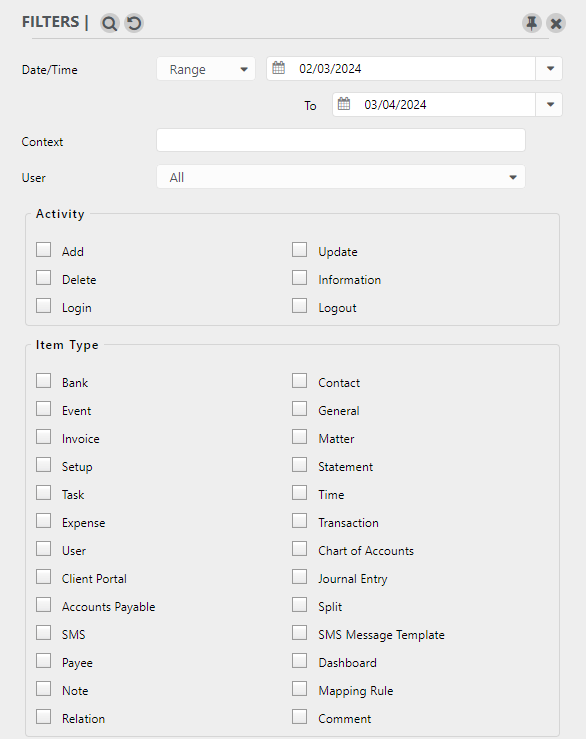
Filters Criteria
| Date/Time | Defaults to one month. To change, you can use the Range drop-down to select from All Dates, This Week, This Month, This Quarter, This Year, Last Week, Last Month, Last Quarter, Last Year or use the =, >, < symbols and choose your date range from the calendar. | ||||||||||||||||||||||||||||||||||
| Context | Use this filter to enter a context which could be a particular client, matter, new entry, or login ID. | ||||||||||||||||||||||||||||||||||
| User | You can choose to view recent activities of All users or use the drop-down to choose a specific user. | ||||||||||||||||||||||||||||||||||
| Activity | By checking the box beside each, you can choose from Add, Delete, Login, Update, Information, or Logout. | ||||||||||||||||||||||||||||||||||
| Item Type | To view recent activities of a specific Item Type, you can check the box beside each or more than one item type from Bank, Contact, Event, General, Invoice, Matter, Setup, Statement, Task, Time, Expense, Transaction, User, Chart of Accounts, Client Portal. | ||||||||||||||||||||||||||||||||||
| Reference |
You can enter a reference value to narrow down your search to a specific entry. The Reference value identifies the specific instance of the item based on the Item Type, as follows:
|
Export Options
- On the Export Grid, in the Export Options section, take the appropriate action:
- Export Current Page
- Click the Export current page radio button.
- Export Multiple Pages
- Click Custom Export.
- From the From Page and To Page drop-downs, click your desired page range.
- Export Current Page
- If you used search filters to refine your results, leave the Apply current filters and Print Applied Filters boxes checked to retain them in your export, or uncheck them if desired.
- From the Export format field’s drop-down, click Excel, PDF, or CSV format.
- In the Report Title field, you can overwrite the default title, if desired.
- In the Description field, enter a description, if desired. This will display beneath the Report Title.
- Click Export.
The system downloads your export file in your designated format to your designated location.